Access Reviews
Run access reviews without the spreadsheet. Owners decide. Removals get done.
Run user access reviews in one place: owners review their own systems, leavers and risky accounts are flagged, and every removal is followed through.
Free plan · 3 users · no credit card · no expiry
- Included on the Free plan
- One reviewer per system, reminded until done
- Every removal tracked until it is gone
A closer look
See the work, step by step.
Explore access reviews in Venvera. Screens show example data; available features depend on your plan.
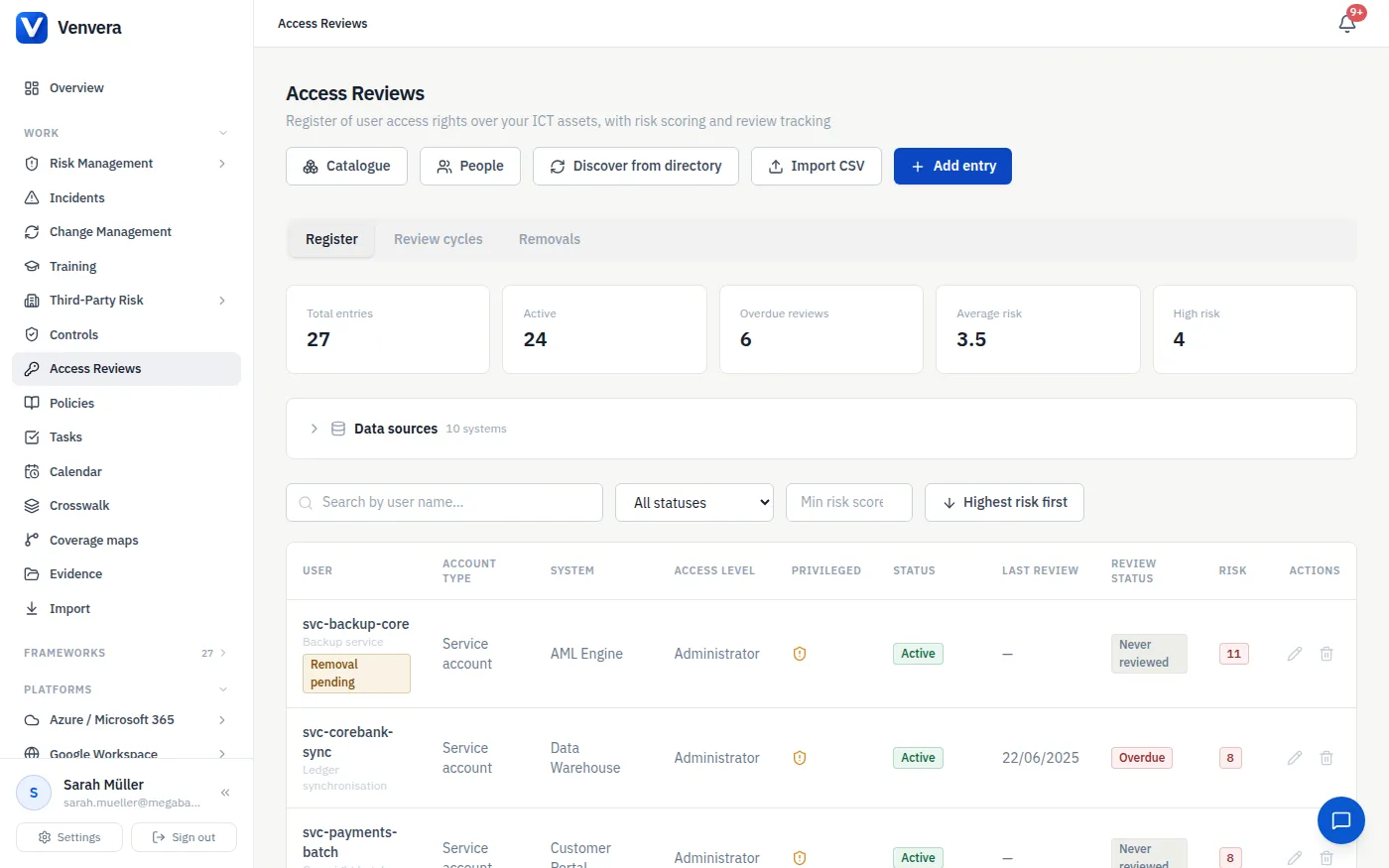
All your access in one register, sorted by risk.
Employees, contractors, third-party providers and service accounts, each line tied to a system and an access level. A published score from 0 to 11 puts privileged, sensitive and remote access first, and MFA or activity logging bring it down.
- Add lines by hand or import a CSV or Excel file
- Review status from the last review date: current, due soon or overdue
- See where each system’s data comes from and how fresh it is
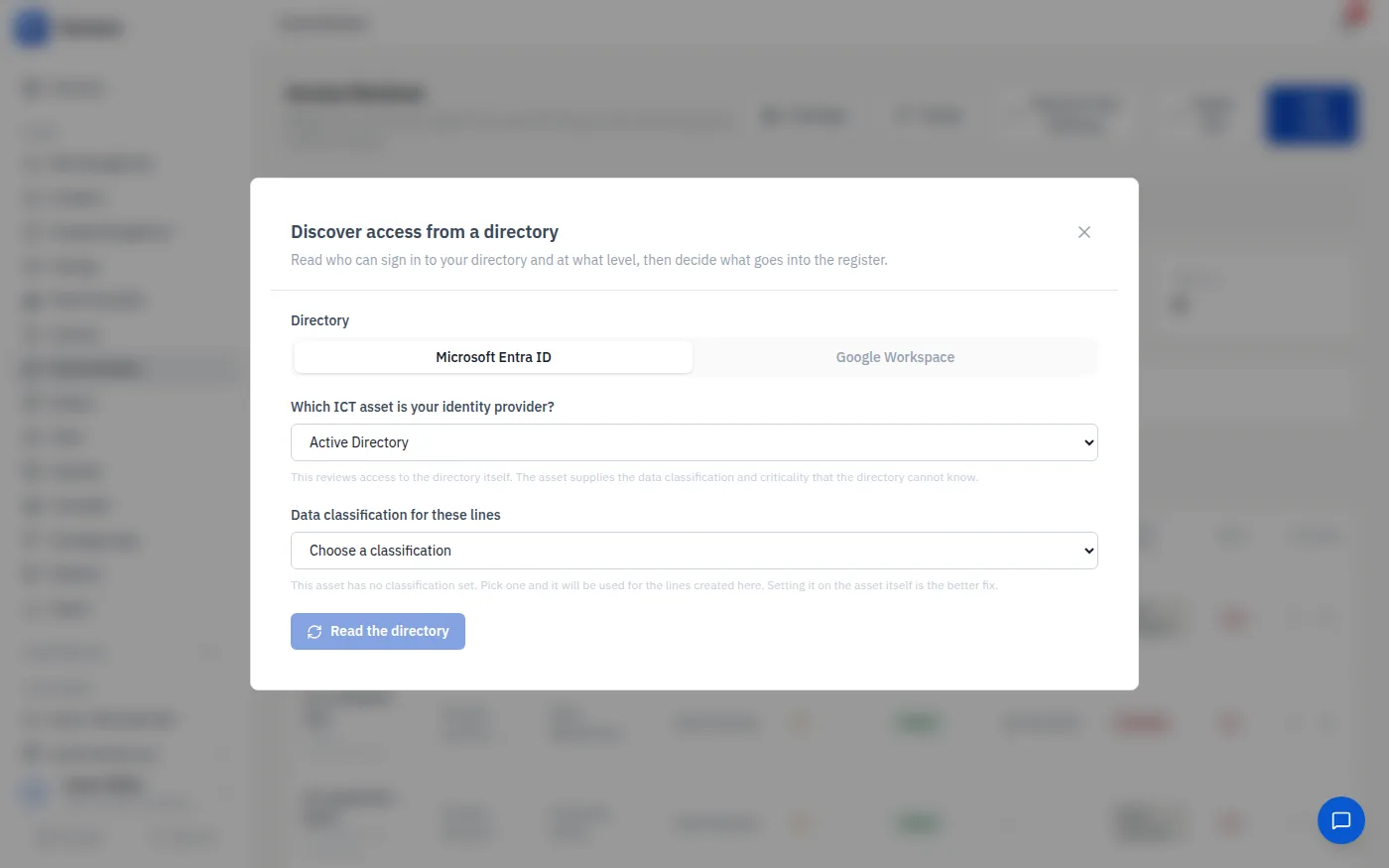
Start from the access you already have.
Discover who can sign in to Microsoft Entra ID or Google Workspace, with admins marked privileged and MFA read from the directory, or read a system’s user list from a screenshot or PDF with your own AI key. Nothing is added until you confirm it.
- Directory discovery and screenshot or PDF reading on Professional
- Accounts whose MFA cannot be read are left out, never assumed
- Changes in the directory are reported, never silently rewritten
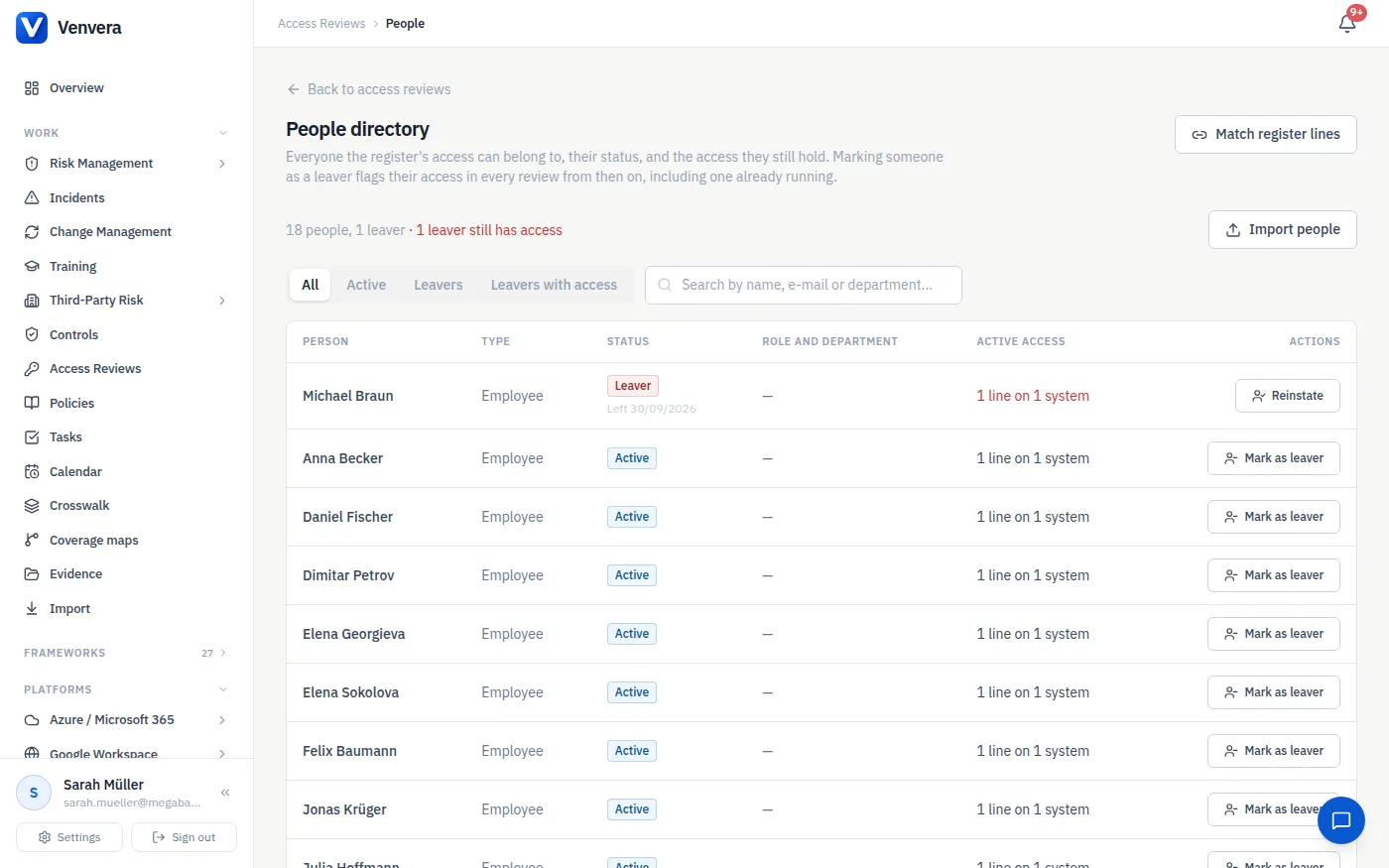
Leavers show up in every review.
Import your HR list into the people directory and mark leavers with the date they left. Their access is flagged in every review from then on, including one already running, and leavers who still hold access are listed first.
- Register lines matched to people by e-mail or employee number
- A full-list import marks people missing from the file as leavers
- A file without a status column never changes anyone’s status
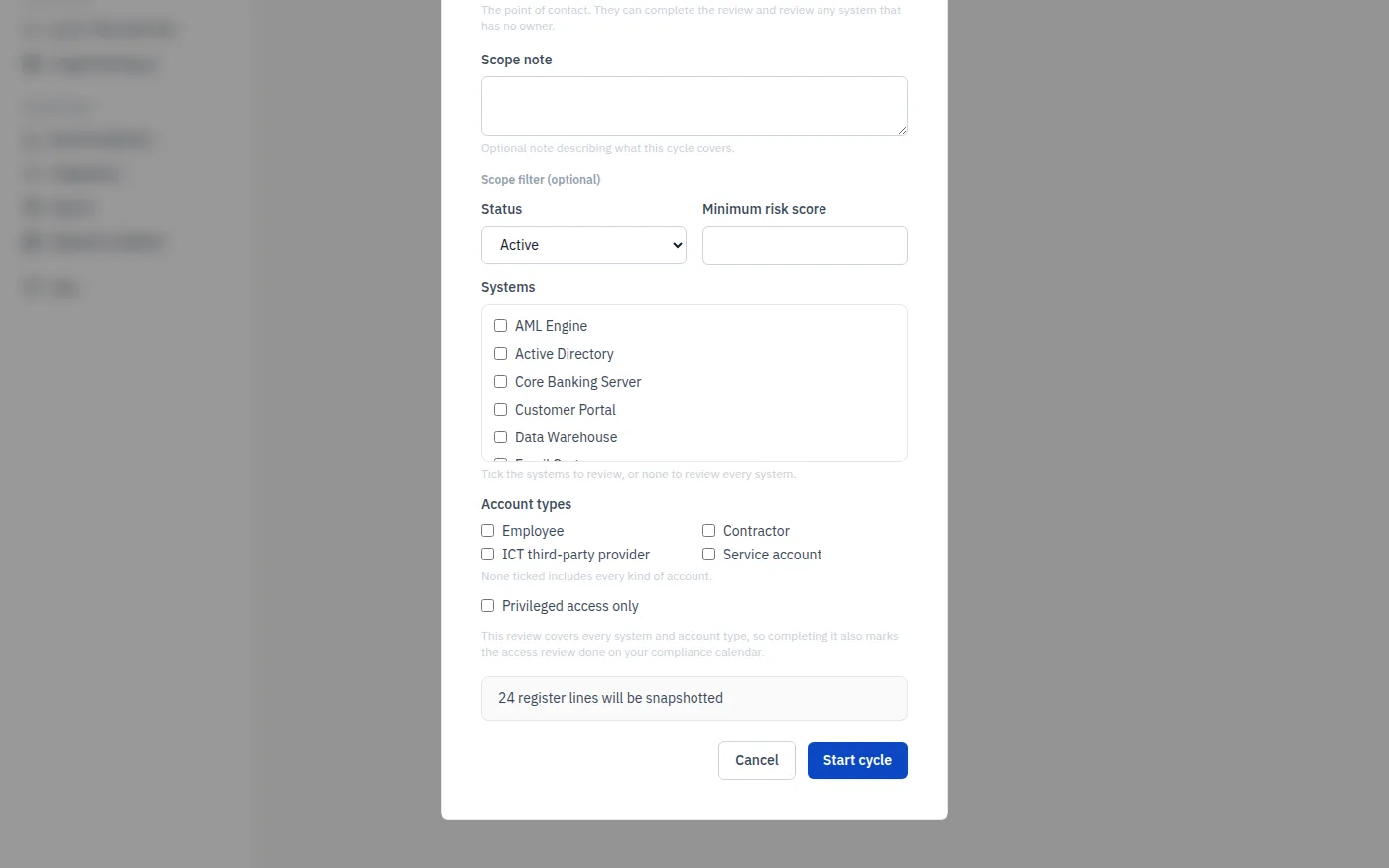
Scope it once. Repeat it on schedule.
Choose the systems, account types or risk level to review, name an owner and a due date, and decide how often it repeats. Each system gets its owner as reviewer, and the next review starts with the same scope when this one is complete.
- Monthly, quarterly, half-yearly or annual repeats
- One reviewer per system, notified and reminded until done
- A whole-register review closes the compliance calendar duty on Basic and above
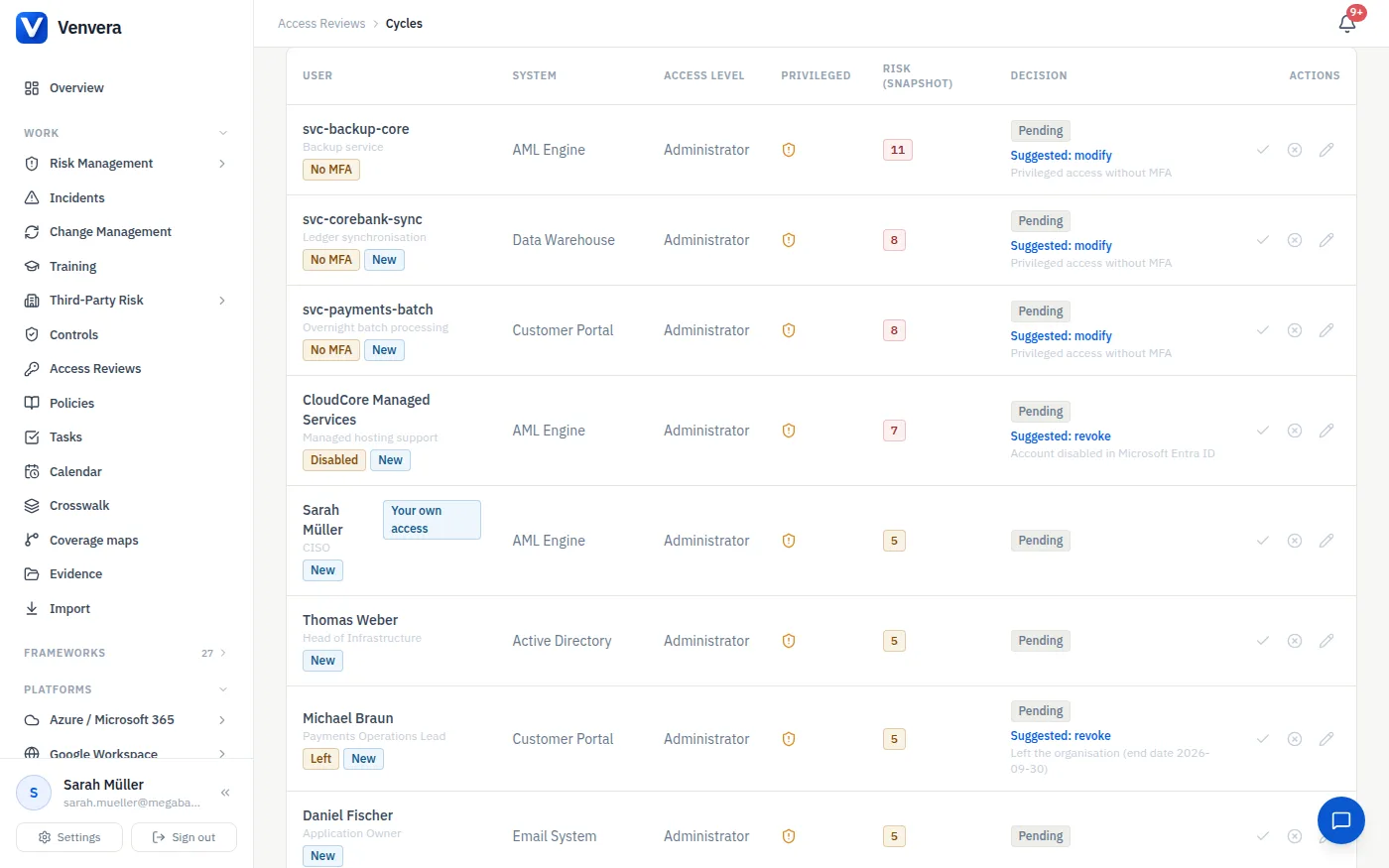
Every line shows what the reviewer should know.
Leavers, disabled or idle accounts, privileged access without MFA, and anything new or changed since the last review are flagged on the line, with a suggested decision and its reason. The reviewer still makes the call.
- Approve, modify or revoke, with a reason for every change
- Approve what the last review approved and nothing has changed since, in one step
- Your own access needs a written reason and is flagged in the evidence
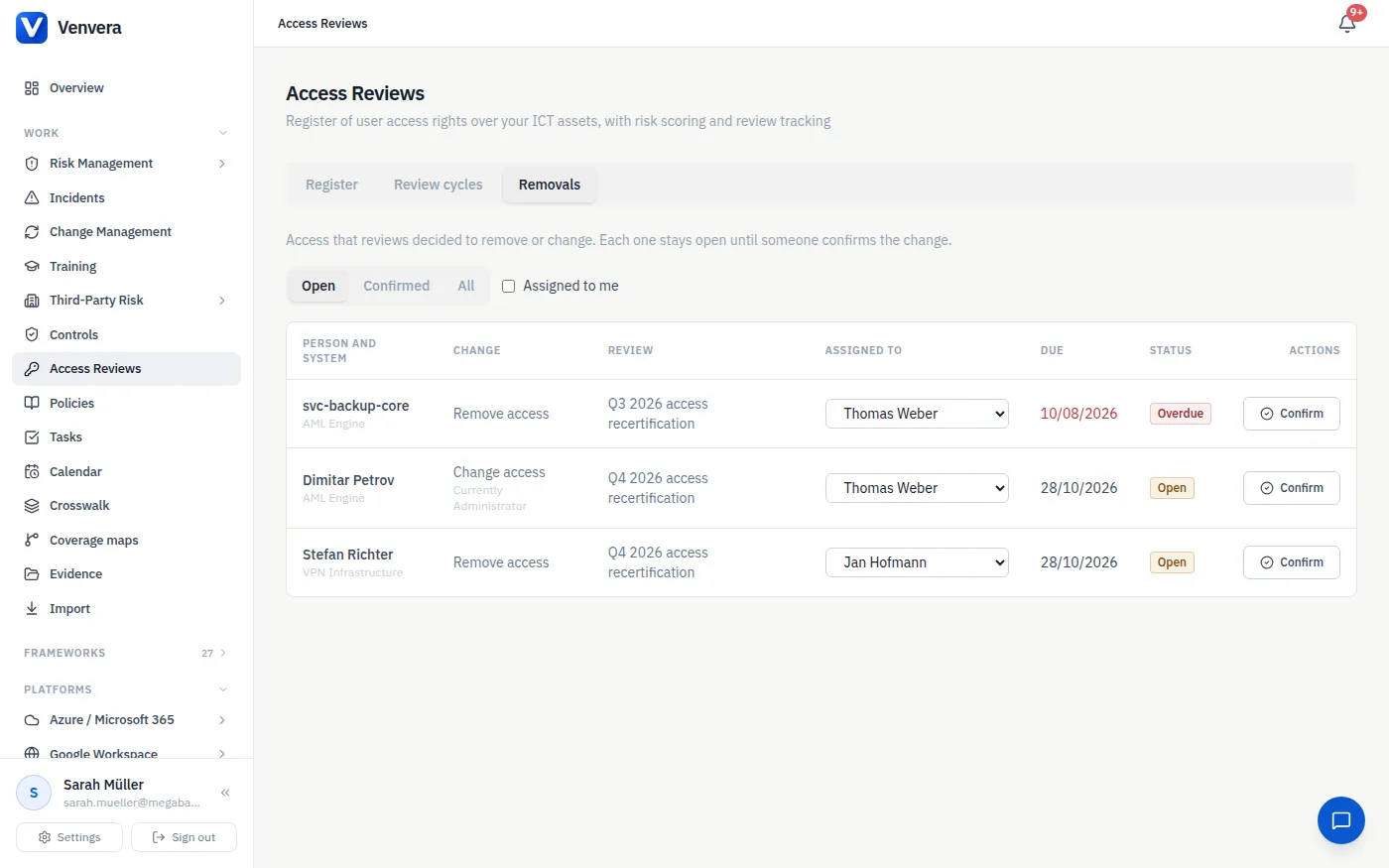
A revoke decision is where the work starts.
Every revoke or modify decision opens a removal for the system owner, due in seven days and reminded until someone confirms the access is gone. For accounts linked to Microsoft Entra ID, Venvera can confirm it from the directory.
- One list of removals across every review
- The confirmation date and a note recorded on the register line
- Venvera records the change; your team makes it in the system
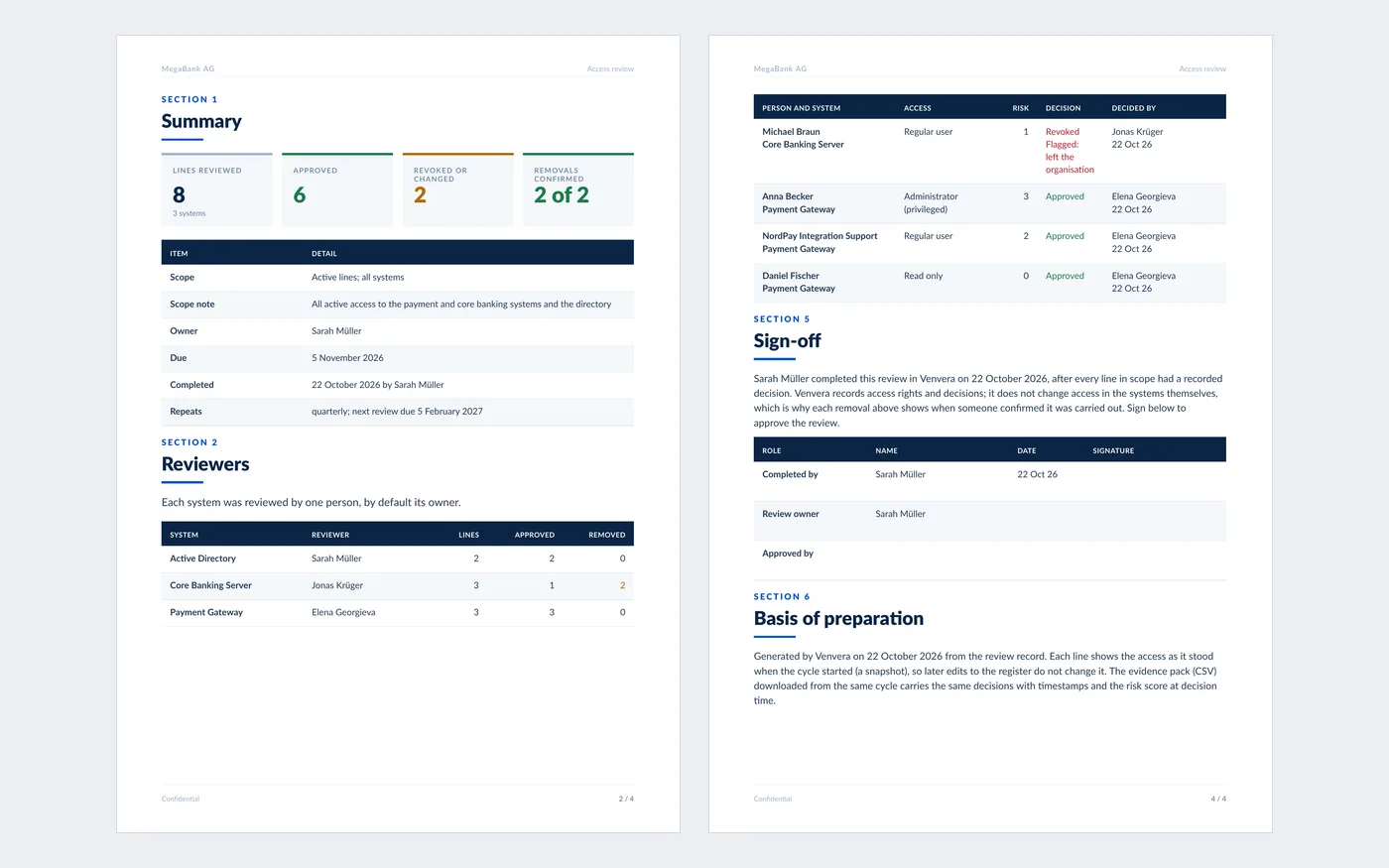
A record you can sign and share.
Completing a review produces a CSV evidence pack of every decision and a PDF summary with a sign-off table. On Basic and above it is filed as evidence under the frameworks you run.
- The risk score, flags and suggestion kept with every decision
- Each removal with the date it was confirmed
- Filed under ISO 27001, SOC 2, DORA, NIS2 and more on Basic and above
From first step to everyday use
Start with the work in front of you.
Bring in your access
Import a list or discover your directory, starting with one important system and the people and service accounts that use it.
Start a review
Choose the scope and a due date. Each system owner is asked to review their own system and reminded until it is done.
Follow it through
Confirm each removal once the access is gone, then sign the summary and keep the evidence pack.
Before you get started
A few useful answers.
Want to see how this fits your team?
Talk it through with usCan I use Access Reviews for free?
Yes. Access Reviews is included in the Free plan, alongside the vendor register and vendor questionnaires: the register, review cycles with reviewers and reminders, signals and suggested decisions, removals, the people directory, and the CSV and PDF records. The Free workspace allows 3 users and 10 vendors, has no expiry and requires no credit card.
What do the paid plans add?
Basic files each completed review as evidence under the access-review requirements of the frameworks you run, and closes the access review on the compliance calendar. Professional adds discovery from Microsoft Entra ID and Google Workspace, daily directory checks for disabled and inactive accounts while a review runs, removal confirmation from Entra ID, and reading user lists from screenshots and PDFs with your own AI key.
Can I import the access lists I already have?
Yes. Import a CSV or Excel file; a dry run checks every row first, so nothing is written until the rows check out. On Professional you can also discover accounts from Microsoft Entra ID or Google Workspace, or read a system’s user list from a screenshot or PDF.
Who reviews what?
Each system in a review gets one reviewer, by default the system’s owner. Reviewers do not need edit rights: they see their own systems, are notified when a review starts, and are reminded before the due date and while it is overdue.
Does a revoke decision remove access automatically?
No. Venvera records the decision and opens a removal for the system owner, who confirms it once the access has been removed in the source system. For accounts linked to Microsoft Entra ID, Venvera can confirm the removal by checking that the account is disabled or deleted.
Are screenshots and PDFs sent to Venvera’s AI?
No. They go to your organisation’s own AI provider with your own key, set in Settings, and the file is not stored. Without your own key the feature is not available.
What can I show an auditor?
The review’s scope and reviewers, every decision with its justification and the risk score and flags at the time, the removals with their confirmation dates, and a PDF summary with a sign-off table. On Basic and above the evidence pack is filed under the access-review requirements of the frameworks you run, such as DORA Article 9, ISO 27001 A.5.18 and SOC 2 CC6.2.
Access Reviews by Venvera
Run your next access review without the spreadsheet.
Free plan · 3 users · no credit card · no expiry